This lesson describes ways of minimising the the impact of artwork on game performance.
If you press ~(tilde) + F5 when in the client you will be presented with the Realtime Profiling Console
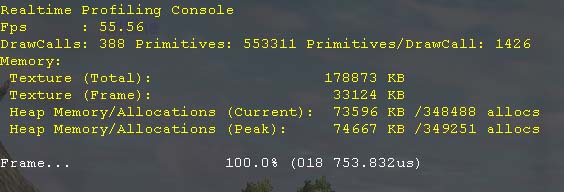
This will give you a overview of your game performance.
Fps: Frames per second
DrawCalls: The number of draw calls used to render the scene.
Primitives: The number of primitives rendered to the scene.
Primitives/DrawCall: The average numberof primitives rendered per drawcall.
Texture (Total): The total size of textures currently loaded (Textures around the player)
Texture (Frame): The total size of textures used to render the last frame.
Heap Memory/Allocations (Current): The amount of memory currently allocated by the application/the number of allocations
Heap Memory/Allocations (Peak): The maximum amount of memory allocated by the application in this run/the number of allocations
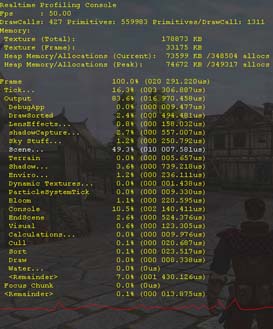
The Realtime Profiling Console can be expanded by pressing Enter to give an even further breakdown of how long the engine is spending on each part of the scene.
Each part can be graphed by pressing G
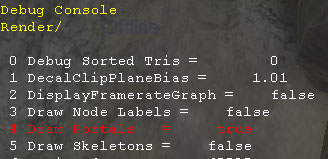
The Client Watchers can be accessed by a ~(tilde) +F7
Use the PageUp and PageDown keys to navigate through the lists and enter to change a parameter or expand a folder.
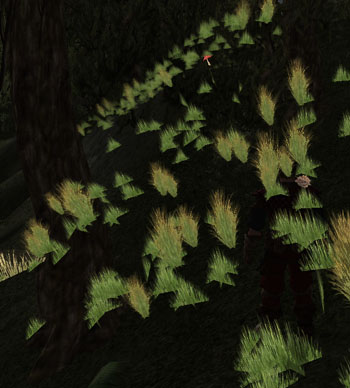
One of the more useful client watchers is the Debug Sorted Triangles watcher. When set to true (1) this watcher will draw everything dark except for alpha blended objects.
Alpha blended objects require sorting and when used excessively can cause the game performance to drop. You should use this watcher to find objects in the game that are unnecessarily using alpha blend. For example a rock should not be using alpha blend.
Note: The flora uses alpha blending, this is OK.
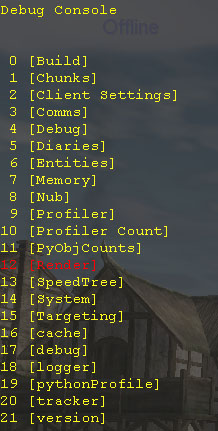
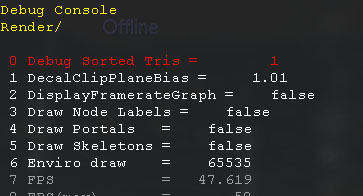
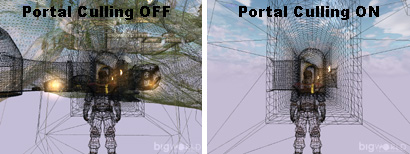
You can test the effectiveness of portal culling using a combination of watchers and draw wireframe.
Use ~(tilde) + F7 to access the Render options and set draw portals to true (1).
This will draw a red line around the perimeter of each portal allowing you to better identify their position.
Press ~(tilde) + F8 three times to make everything draw in wireframe mode. This will allow you to see through objects and visualise what is actually being drawn/culled.
In the scene below I can see that the deeper areas of the dungeon network, and the outside world are being culled.
BigWorld allows characters to share animations, as long as the bones used to
rig each character share the same name structure – animations are shared
by using a common LOD model.
 It is recommended that animations
only be shared between characters using exactly the same skeletal rig.
Sharing animations between models of different size or shape will result in the
models vertice's being transformed to fit the new rig.
It is recommended that animations
only be shared between characters using exactly the same skeletal rig.
Sharing animations between models of different size or shape will result in the
models vertice's being transformed to fit the new rig.
It performs the steps described below (assuming the LOD configuration
depicted in the screenshot below:
1 Action Matcher calls an animation to be played in the
game.
2 The currently rendered LOD model is queried, to check if
it has the appropriate animation. If it does not, then Action Matcher looks down
the LOD tree (LODs called further away), checking them for the animation.
In the example below, if ranger.model is being
rendered and the walk animation is called, then the
ranger.model will play the generic male walk animation
assigned to base.model. That is so because
ranger.model and rangerlod.model do not have
specialised walk animations of their own.
Action Matcher does not look up a tree, so in the example below,
if loddy.model is being rendered, and the ranger.model
specific animation firegun_ranger is called, then no animation will
be played. This is usually not a problem, as loddy.model is
rendered at such great distances that the animation would be invisible. This
means that animations that would otherwise be invisible at such great
distances are not played, increasing game performance.
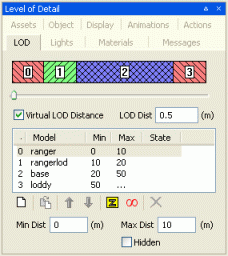
The table below described the LOD models used in this example:
| LOD Model |
Description |
|---|
loddy.model |
This is a single-piece mesh 50-polygon character, viewed at such distances that
it is unnecessary to utilise all skeletal bones to deform its mesh.
Although it was rigged using the exact same skeleton as
ranger.model, the only bones set to influence the mesh were:
 Right_upperarm
Left_uppperarm
Left_thigh
Right_thigh
The centre node pelvis.
Although the animation contains detailed information about the other joints,
it is unnecessary to use it, as the model is rendered so far away that these
movements would never be seen. This decreases the number of transforms the vertex
shader needs to perform and increases performance.
Only the most common animations are assigned to loddy, such as
walk and jump. For details on how to reduce node
influence in LOD models, see the lesson
Create Level-of-Detail Mesh for
Characters,Node LOD
Theory.
|
base.model |
This is a low-poly (300-polygon) single-mesh generic male character.
Even though the animations used to deform base.model contain
more than 17 bones, the base.model mesh is deformed by less than 17
bones.
When base.model was rigged, the hands were linked to the forearm,
instead of each individual finger being influenced by separate bones. Hand and
finger animations are not visible at large distances, so there is little need to
show them.
This model has all male specific animations assigned to it. All male
bipedal characters should use base.model as a LOD so they can share
these generic animations.
For example, animations assigned to the base model may include male
variations of:
walk
run
turn
jump
|
rangerlod.model |
This is a lower poly version (1,700-poly) of ranger.model.
Although the mesh is broken up in segments, the smaller detail animations
are not used. For example, the fingers are not individually animated.
All specific ranger animations are assigned to this model, such
as:
ranger_attack
ranger_sneek
ranger_fight
|
ranger.model |
This is the final high-poly version (2,500-poly) of the model.
The model is now rendered close up, so each individual bone is used –
fingers, ponytails, and clothing must animate independently.
The complexity of your animation tree depends on the number of characters
sharing skeletal rig structure and animations. If each character animation
is to be unique down to the finest detail, then there is little need to share
animations between them.
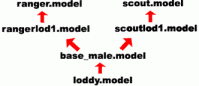
In the example below, base_male.model is used to share
animations between two models that both use the same skeletal rig:
ranger and scout.
Note that in the example below the animation to be shared from
base_male.model to its two higher LODs must contain all nodes that
you wish to use for those higher LODs. So make sure that you add all skeleton's
nodes to the skin modifier, even if base_male.model does not use
every node.
|
If you have an object that is featured more than approximately 3 times within
a single view, then batch rendering that object should improve the game performance.
Batching can be performed on both animated and non-animated objects, and is
set in ModelEditor's Object Properties panel.
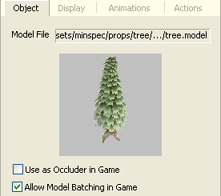
Batch rendering cannot be performed
on models with a material tint or alpha blended objects
dPVS and Umbra are third party occlusion culling solutions that can be used to improve the performance of the game by avoiding processing of 3d content which is hidden from view.
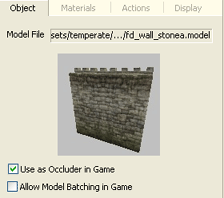
Occlusion culling is performed on the CPU, there is some overhead in calculating when an object is being used as an occluder. For this reason it's important to only flag those objects which are naturally good occluders. e.g. larger objects like walls, and houses. If smaller objects are used as occluders they can decrease game performance.
To flag an object as an occluder
Occlusion culling is performed on the graphics card and as a result there is no overhead in testing an object as an occluder. Umbra requires no artist assistance.
Umbra understands BigWorlds portal system and as a result can improve portal culling by using game geometry such as shells and their contents to occlude portals.
Umbra basically uses line of sight to determine if an object should be drawn or not. Consequently, it's extremely important to ensure that models which should block the line of sight of other models (walls, shells, and buildings) need to have good modelling integrity. Good modelling integrity means no holes, un welded vertices, or broken edges. If models contain holes they will not be able to cull geometry correctly resulting in decreased game performance. You can check for culling problems by turning on wire frame mode whilst in the client or WorldEditor. If objects are being drawn behind walls and buildings then there may be a problem.
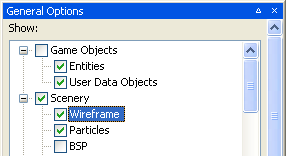
Wire frame mode is enabled by pressing ~(tilde) + F8 in the client, or in the options menu of WorldEditor
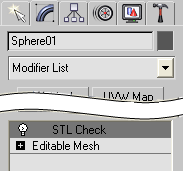
3dsMax's STL Check Modifier can identify problems like holes and un welded verts with a model.
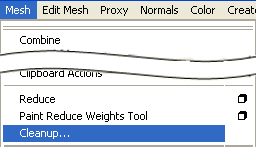
Maya contains a similar function called polygon cleanup Mesh - Cleanup.
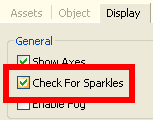
Model Editors Check For Sparkles can be used to identify holes in a mesh. It colours models black and the background white, this makes it easier to see tiny holes and cracks.

The Client Access Tool (CAT) allows you to execute Python scripts from an easy-to-use GUI.
Although CAT ships with some basic commands it's mostly a framework of a tool available for customisation. If you need artists to execute python commands during development then CAT is the perfect tool.
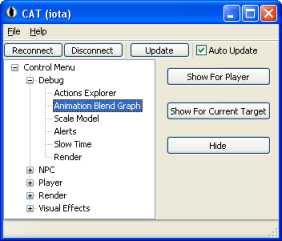
CAT can be found in bigworld/tools/cat/cat.bat. Simply run this program after running the client (game).
For CAT to function you will need to install the latest Python and wxPython, both can be found via an internet search.
Many games tend to adopt the dark is cool approach, resulting in a
world that is overall dark in appearance, and only use half the available colour
range. To tackle this issue, we have incorporated a realtime histogram into
WorldEditor and into the BigWorld client, allowing you to check the range of
colours and luminance used by your game assets.
The histogram can be viewed in WorldEditor in the Histogram panel, or
via the Histogram Console, which can be activated by pressing
F11 in WorldEditor, or by pressing F4 in the Client
Engine.
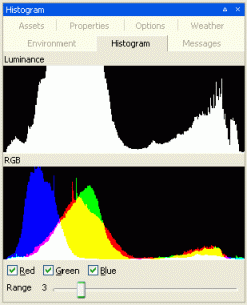
WorldEditor's Histogram panel |
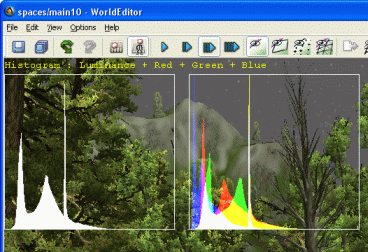
WorldEditor's Histogram console |
The keyboard shortcuts available in the Histogram Console are
described in the table below (please note that the alphanumeric must be used):
| Key |
Action |
|---|
0 |
Toggles the graphing of luminance. |
1 |
Toggles the graphing of the red component in the RGB histogram. |
2 |
Toggles the graphing of the green component in the RGB histogram. |
3 |
Toggles the graphing of the blue component in the RGB histogram. |
4 |
Toggles the rendering of the scene background on the histogram. |
5 |
Decreases the vertical range ratio of the Luminance and RGB histograms. |
6 |
Increases the vertical range ratio of the Luminance and RGB histograms. |
For better visual results and runtime performance, BigWorld's 3D engine
renders trees' billboards as crossed quads, without spin to face.
For each tree, BigWorld's 3D engine will render as many 360° billboards
as have been exported into the composite texture map, although three billboards
should yield the best visual results. If available on the exported map, one
horizontal billboard will also be rendered.
 When exporting a tree, SpeedTreeCAD
pre-renders billboards into the composite texture map. Due to that, a billboard
will exactly match a tree only when it uses the same seed number as the one used
when exporting the
When exporting a tree, SpeedTreeCAD
pre-renders billboards into the composite texture map. Due to that, a billboard
will exactly match a tree only when it uses the same seed number as the one used
when exporting the .spt file.
To make sure that BigWorld uses the same seed number used when exporting the
tree, set it to 1 in WorldEditor.
To improve memory and runtime performance, BigWorld's 3D engine uses the
following techniques:
Instancing – A
single copy of a tree is kept in memory for all its instances.
Batching – When
rendering trees, BigWorld's 3D engine sorts the primitives in order to reduce
the number of state changes required to render all trees.
Compounding –
Trees are compiled together into few vertex buffers, to be rendered with fewer
draw calls.
The higher the ratio of trees-to-tree-types, the better these techniques will
work. Thus, in order to maximise time and memory savings, world builders must
try to minimise the number of distinct trees placed in the world.
Distinct trees are the ones with
different source .spt files or seed numbers.
The Compounding technique is applied only to billboards, due to the higher
memory and processing requirements of compounding higher detail trees.
In order to be able to render billboards with a single draw call, a texture
atlas containing the billboards for all tree types, at all viewing angles,
must be built. This is automatically taken care by the engine, but world
builders might need to tweak the size of the texture atlas to hold all
billboards required.
If the texture atlas is not large enough to hold all billboards, a warning
will be issued into the debug output, and the billboards will start to
overlap themselves in the atlas, resulting in wrong texture mapping.
For details on how to tweak the texture atlas, see SpeedTree's XML
configuration file, section billboardOptimizer. The name of
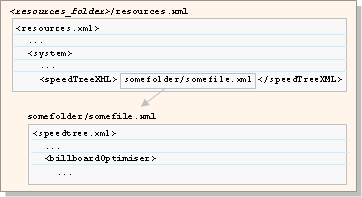
SpeedTree's configuration file is specified in resources.xml,
located in the game's resource folder, as illustrated below:
A good amount of variety without
performance impact can be achieved by scaling and rotating instances of a
single tree.
Interleaving instances with distinct trees also helps disguising repetition.
Beware, though, that some care must be taken when rotating trees if the they
are expected to animate correctly under strong winds. For details, see
Content Tools Reference Guide, chapter
WorldEditor, section
SpeedTree →
Wind Animation
The Lock Server (bwlockd) server allows world builders to work simultaneously within the same space without overwriting each others changes. It works by allowing users to lock regions of a space so that only they have editing access to it.
The Lock Server must be run on a machine that all world builders can connect to. The bwlockd.py python script is found here bigworld/tools/bwlockd.
To connect to a bwlockd server each user must configure their WorldEditor options.xml file to connect to the Lock Server.
	<bwlockd>
		<use>	true	</use>
		<host>	</host>
		<username>	</username>
	</bwlockd>
When a user first connects the entire space will be shaded red to indicate that the user cannot alter any of the assets.
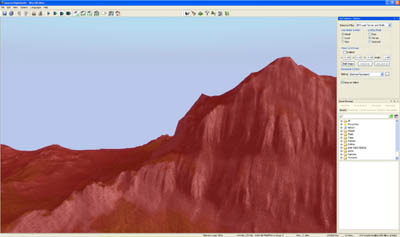
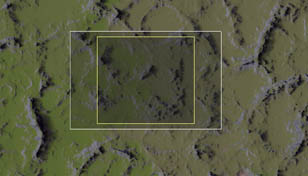
To lock off a region for editing select the project view button.  This will give you an overhead representation of the space.
Marquee select the region you want to lock for editing.
Enter a commit message in the message box
Press Lock Selected Chunks, the Lock Server will consult the source control software you are using and ensure you have the latest version of the chunks before allowing you to edit them.
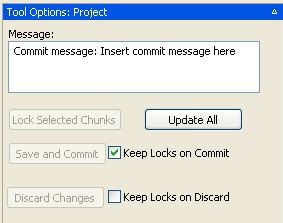
Once the chunks are locked they will appear the normal colour in the 3d viewport. You may now edit the space
Once you have finished editing you can either Discard Changes or Save and Commit your changes. Each button has the option to Keep Locks after the function, this will retain the lock on the area previously selected.
Remember that even if you exit WorldEditor the space remains locked so that only you can access it. Always unlock a region if others need to work there.
Changes made to textures and models of non entity objects can be reloaded without restarting the client executable by executing the following python console command.
Ctrl + P (to access the python console)
$B.reloadChunks()
Or, if the shortcuts are not loaded
BigWorld.reloadChunks()
Copyright 1999-2011 BigWorld Pty. Ltd. All rights reserved. Proprietary commercial in confidence.
 Realtime Profiling Console
 DPVS and Umbra
  Using the Realtime Profiling Console to test game performance