Creating actions
 Actions' tags and tracks
- Blending actions
- Player movement
- Speed Trigger Values
- Action order and LODs
- Using Actions with flying entities
- Viewing and Debugging actions
Creating actionsActions' tags and tracksBlending actionsPlayer movementSpeed Trigger ValuesAction order and LODsUsing Actions with flying entitiesViewing and Debugging actionsAn action contains an animation file and a set of data describing when and how that animation should be played within the BigWorld engine. The engine's Action Matcher uses the actions' descriptions to decide which animation should be played on the model.
Animation data does not drive player movement. The player entity (representation of the player's position in code) will move and the action matcher will choose an animation that most likely describes that movement.
For example, a run action will contain a run.animation
file and information related to what speed the model needs to be travelling at in
order to use the run animation. When originally exported from the 3d application the
run.animation may have covered 10 m per second. If the action matcher was
set up to match this animation when the character is running 5 m per second, the
animation would play back at half the speed to avoid foot sliding.
 Creating actions
To create an action, click the Actions panel's Create Action
button ( ).
).
The Create Action dialog box is displayed, prompting for an action name.
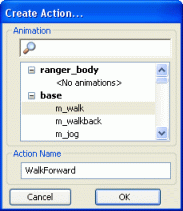
Pressing OK will add your new action to the action list.
Modifications can be made to existing actions simply by altering any of the action fields.
If you need to remove an action, then select it from the
list and click the Delete Action
( ) button.
The order in which actions appear in the action list is important
(see below), and can be altered
via the  and
and
 buttons.
Actions' tags and tracksActions include information that help the Action Matcher select the appropriate animation to play. You need to select the appropriate settings using the check boxes in the panel. These are toggled according to the type of animation currently selected in the list.
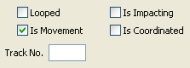
The table below describes the fields illustrated above:
| Field | Description |
|---|---|
| Looped | Required for any non-movement looping animations, such as an idle sequence. It will cause the animation to jump back to the start and repeat the sequence again continuously, until interrupted by another sequence. |
| Is Movement |
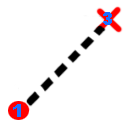
Used for animations that move off the world origin in your 3d application, and are linked to the Action Matcher for camera translation. These include the basic movement animations (such as walk, run, side-stepping) that the player will control in the game. In order to move an avatar using this setting, the change in transform of the root node from the beginning to end of the animation is recorded. The distance moved by the root node will be used to scale the speed of the animation as it is played back in order to prevent foot sliding.
This check box should be selected for linear animations with regular linear movement. For irregular movements, select the Is Impacting check box instead. |
| Is Impacting |
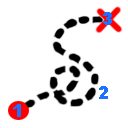
Used when animation data should impact (change) the entity position and yaw. When a non IsMovement animation ends in the 3d application in a position or orientation that is different from the start (usually the world origin) and does not loop, the IsImpacting tag should be used. Animation data is not stored or used by the BigWorld server, thus non linear entity movement needs to be sent to the server each frame. The image below describes such an event where a character starting at position (1) takes a complicated path to eventually arrive at point (3). Because the path taken by the model is so complicated its necessary to send the position of the entity to the server each frame. Note: The direction cursor (looking direction) by default, is not effected by this motion and thus a change in yaw at position 3 will probably trigger a turn animation, you may need to take control of the direction cursor to prevent this from happening.
Examples of animations that may require the Is Impacting tag: jumping over objects, turn animations, complex game object interactions, combat or knockdowns. |
| Is Coordinated |
Used for animations that do not start at the world origin in 3ds Max
(e.g., interactions) and are exported from this offset position.
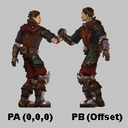
This is used for animations that involve a non-player character (NPC), which needs to be positioned relative to the player's character for the purpose of matching contact points. For example, take a look at the "handshake" set of animation on the Ranger model. The animations allow a player and an NPC to shake hands. The player (PA) was exported from the origin of the 3d Application whilst the NPC was exported offset from this position. All of player B's actions will use the Is Coordinated tag, allowing the engine to use the offset position to correctly position the player character for a perfectly matched handshake.
The offset position is available to script so that models can be perfectly positioned and have their animations played back exactly as they were exported. |
| Track No. |
Animations play on tracks. Only one animation can play on a track at a
time, therefore animations will override previous animations that play on the
same track. Animations playing on different tracks will blend with each other
using their per-node blending values
defined in the animations
tab.
If you want an animation to always have a unique track, then select the Own Track checkbox. |
| Own Track | Causes the given action to always have its own track. An animation always on its own track always blends with other animations playing at the same time. For more details, see Animation Tracks. |
Action Panel's fields
Animation tracksTracks can be thought of as regions of the body. For example, the lower body
might be defined as Track 1, and the upper body as Track
2. Animations involving mostly the lower body, such as
walk.animation and run.animation will therefore not
play at the same time. An animation involving the upper body, such as a
wave.animation will play at the same time as a
walk.animation.
For example, consider the diagram below:
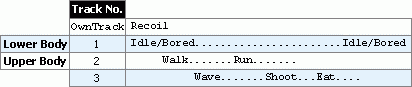
The diagram above implies the following:
 A walk animation playing on
Track 1 is cancelled when a run animation that also plays on
Track 1 is called (the two animations cannot play at the same time).
However, there will be blending out of the walk animation and blending in
of the run animation.
A walk animation playing on
Track 1 is cancelled when a run animation that also plays on
Track 1 is called (the two animations cannot play at the same time).
However, there will be blending out of the walk animation and blending in
of the run animation.
A walk animation playing
on Track 1 will continue to play and blend with a wave animation
playing on Track 2 so that the final animation will be a combination of a
walk and shoot animation.
The recoil animation is set to Always on own track which ensures it exists on its own unique track. This animation will
blend with any other animations, and it will not be cancelled by another
animation, allowing it to play in its entirety.
Blending actionsWhen two animations have the same track number, the most recently played animation will cancel the previous one. The Blend In and Blend Out fields determine how many cross-over frames are used between blending from one animation to the next.
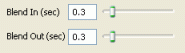
Values around 0.3 are usually ideal for most animation blends.
When blending two actions with different blend times, the blend values are normalised.
Note: Per node blending values can effect the weight of each node as it blends in and out.
Player movementThe player character's movement is controlled by a system called the Action Matcher, which receives information about the model's world position, rotation and translation and automatically selects the most appropriate animation to play.
The translation is based on the root or centre node of the skeletal structure.
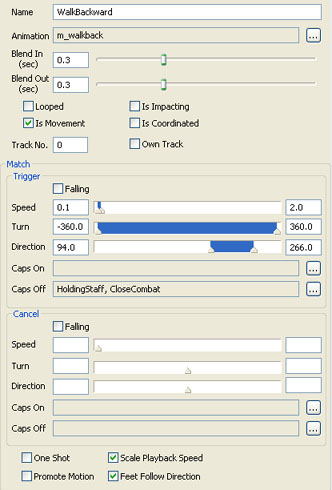
Action Panel's fields for a Walk Backward Action
The table below describes the fields illustrated above:
| Field | Description |
|---|---|
| Trigger | Defines the entity movements that trigger a particular action to play. |
| Cancel | Defines the entity movements that stop a particular action. |
| Speed |
Each animation for movement will have a Minimum and Maximum speed
range assigned to it in the model file – this means that the translated
distance of the centre node must fall within this range for the animation to be
used.
For example, a walk cycle with a Minimum value of 1.0 and a Maximum value of 2.0 units means that the centre node will need to cover a distance anywhere between these two values for the walk to be used by the Action Matcher (e.g., 1.6 units). |
| Turn |
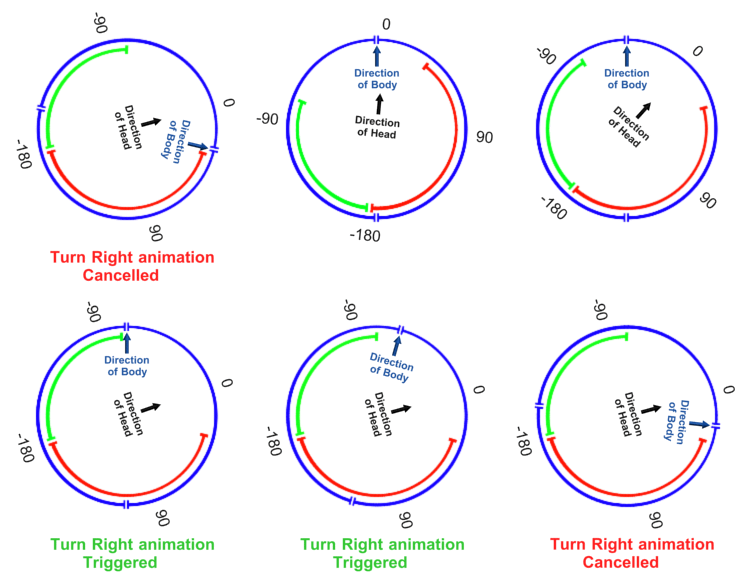 Defines the entity's head position in relation to the direction of the body.
Because the head follows the mouse cursor and has a certain range of freedom before the body starts to turn after it, this setting is mainly used to trigger turning animations. For example, a turn right animation might be triggered when the head reaches a angle between -180 and -80 (see the green line in the diagram below). The turn right animation is then cancelled when the head position reaches +45 degrees (red line) relative to the direction of the body. |
| Model Is Falling | When selected, the Trigger and Cancel group boxes' Speed, Turn and Direction values will only match if the model is also falling. |
| Direction |
Triggers actions dependent on the translation relative to the entity's facing direction. A walk forwards action would require values between - 90 and +90 in order to trigger the walk forward action. A walk backwards action would require values between 94 and 266 in order to trigger the walk backwards action. |
| Caps On |
Capabilities can be used to trigger a different set of animations during different conditions. For instance, a completely different set of animations could be used when under water or flying. Take a look at the Ranger's staff actions. When holding the staff we wanted the Ranger to walk/run differently so we created a unique set of actions using the CAPs system. Now when the Ranger is in the HoldingStaff state it will use the CAPs ON HoldingStaff set of animations. CAPs ON are not exclusive, which is why a CAPs off tag is required. Without CAPs OFF the action matcher would match a hold_staff_walk action to a character not holding a staff but walking. Capabilities are defined in |
| Caps Off | |
| One Shot | Determines whether the animation should be played only once. For example a turn left animation need only play once, otherwise the player will continue to turn on the spot. |
| Scale Playback Speed |
Used in conjunction with the IsMovement tag, Scale Playback Speed determines whether the animation playback speed should be scaled as a function of the entity's speed. For example, a walk animation in your 3d application may translate at 2 metres per second. If this field is checked, and the entity is moving at 1 metre per second, then the animation will be played at half the speed. When an action set to IsMovment blends into another IsMovement action the BigWorld engine will synchronise the blend times. |
| Feet Follow Direction | Determines whether the model should turn to face the direction of the entity. |
Action Panel's fields
Speed Trigger ValuesWhen deciding upon speed trigger values for your actions. it's best to have a detailed understanding of the common speeds used by your avatar or NPC.
Be on the lookout for transition jitter caused by the action matcher swapping between different actions whilst the avatar moves around the world. This will most likely occur when traveling over undulating terrain.
The following image illustrates such situation, as the avatar moves down hill the avatar speed increases. As a consequence the action matcher will match the "Run" action. When the avatar starts climbing a hill the action matcher will match for Jog.
This swapping and changing between actions can cause some transition jitter. Testing for this is quite easy, simply use the DebugAQ

A typical speed trigger value for a run action
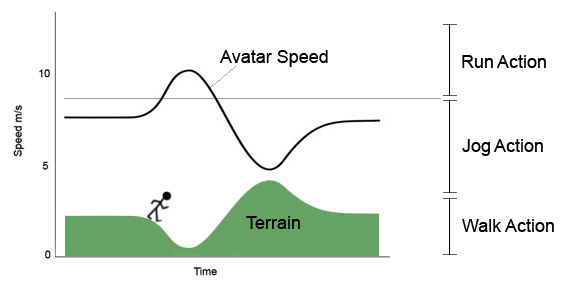
This avatars will transition from jog to run every time it goes down hill.
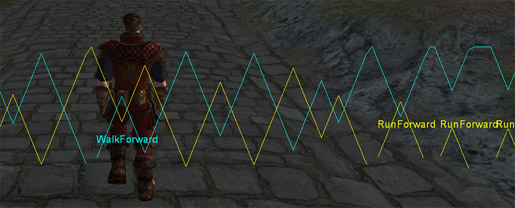
Avatar with action matcher set incorrectly so as to cause transition jitter. DebugAQ used to view actions being played.
Of coarse, all this assumes you are using some kind of physics like the one implemented in FantasyDemo that alters the avatar speed with terrain gradient. If your avatar always moves at a fixed speed regardless of terrain such considerations are probably irrelevant.
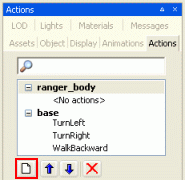
Action order and LODsActions are tested for validity from top to bottom within the action list on the currently rendered LOD model.
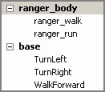
In the example above, if a match was found for both ranger_walk
and WalkForward, then the action called would depend on the
currently rendered model. If the ranger_body was rendered, then the
ranger_walk action would be triggered. If base was
rendered, then WalkForward would be triggered.
If the ranger_body is currently rendered and an action is called
that has no match within the ranger_body action list
(TurnRight, for example), then the Action Matcher will look for a
matching action in the Ranger's LOD list from top to bottom.
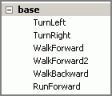
If multiple actions are found to match, then the Action Matcher will choose
the topmost one. For example, considering the action list above, if both
WalkForward and WalkForward2 were found to match, then
WalkForward would be used.
Using Actions with flying entities There are a few key differences between creating an action set for flying entities and their ground based cousins.
Flying Idle to Movement transitionsIn the case of ground based entities, idle animations are typically not tagged as IsMovement. In such cases transitions from Idle to Walk are not synchronised. This is acceptable because it doesn't matter what stage of the idle animation the model is in as it transitions into the first frame of the walk animation. The case is different when we consider flying entities. A flying entity's idle animation has an inherent cycle (flapping wings). If you were to pick a random point in this idle animation and transition into a flyforward animation it is quite likely the wing cycle will not match. Solving this problem is as simple as giving the Idle action the IsMovement tag.
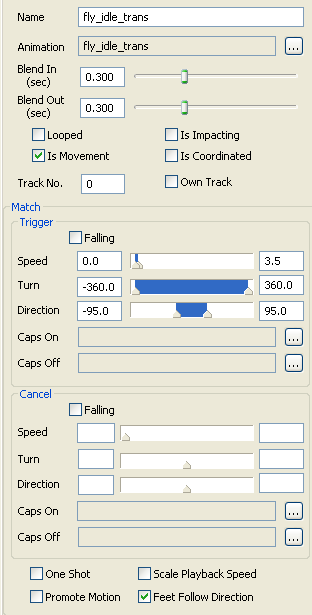
Idle action setting for flying entity's fields
Scale playback speed Scaling the playback speed on a walk animation makes sense for a ground based entities as it prevents foot sliding. However, for a flying entities scaling playback speed only makes sense in one direction, as you fly faster you want to flap your wings more, but if you slow down past a certain point your wing flap animation will stop which of course looks incorrect. A simple solution to this problem is to ensure that the idle action is matched at low speeds. Note in the above diagram that the idle animation actually matches speeds ranging from 0.0 to 3.5. Also, the action is not tagged as Scale Playback Speed.
I do not have turning actions for this particular flying entity so Feet Follow Direction has been tagged, If turning actions were required it would be essential to turn this tag off.
Viewing and Debugging actionsThe results of the currently selected action can be previewed, by clicking the Play button at the top of the panel.
If player animations are not working as expected, then they can be debugged within the game, either through the Python console or through the Client Access Tool (CAT).
From Python consoleTo access the Python console when in-game, bring up the console via the
~(tilde) + P keyboard shortcut.
To debug the player model, type BigWorld.debugAQ(BigWorld.player().model)
To debug a model targetted (looked at) by the player model type BigWorld.debugAQ(BigWorld.target().model)
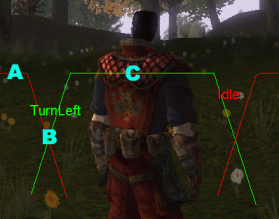
This useful debugging GUI lets you see which animations are playing at a particular time, allowing you to identify the incorrect animation within the game.
In the above picture the Idle animation blends into the
Turn Left animation, then back to the Idle one. In a
more detailed way, the following takes place:
At position A, 100% of
the Idle animation is playing.
At position B, 50% of
the Idle animation is playing, and 50% of the TurnLeft
animation is playing.
At position C, 100% of
the TurnLeft animation is playing.
Using Action Matcher debuggerThere is an Action Matcher debugger module that can be imported to help debug actions
To access the Python console when in-game, bring up the console via the ~(tilde) + P keyboard shortcut.
type
from Tests import ActionMatcher
type
ActionMatcher.test()
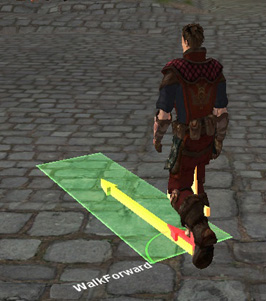
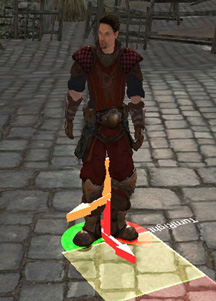
This debugger shows you some useful informaiton.
1. The current action
2. The model direction (red arrow)
3. The direction cursor direction (orange arrow)
4. Cancel and Trigger volumes (green and red circles in right picture)
5. Entity speed (Yellow arrow) and currently matched IsMovement speed extents (green block)
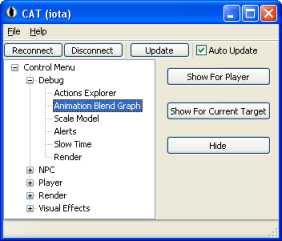
Debug actions from CATAlternatively, you can use the Client Access Tool (CAT).
CAT allows you to execute Python scripts from an easy-to-use GUI. It can be
found in bigworld/tools/cat/cat.bat. Simply run this program after
running the client (game).
In the script tree, select the Control Menu→Debug→Animation Blend Graph – this will give you access to action debugging tools for the current player, and whatever the player is targeting.
Debug actions from within ModelEditorThe Actions tab in ModelEditor can be used to directly debug actions within the tool.
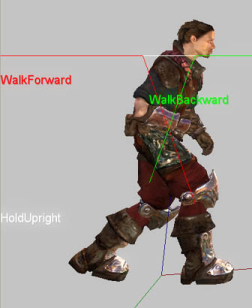
It is a good idea to turn on the  button to show which combinations of actions are currently playing on your model.
In the picture below, the WalkForward action has just blended
out to the WalkBackward action. Meanwhile, the
HoldUpright action has blended with both.
There are several rules governing how the actions are played on the model. These rules simulate what occurs within the game environment, allowing you to debug the action settings. The rules are described here, with examples from FantasyDemo's Ranger character.
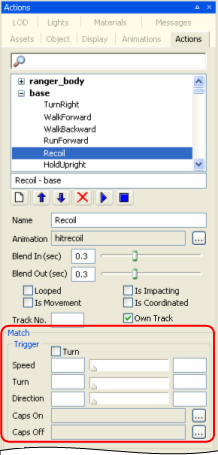
If an action does not contain any trigger condition, then it will play only once, unless set to looping.
Example: The Recoil action, which is called by script within the game environment.
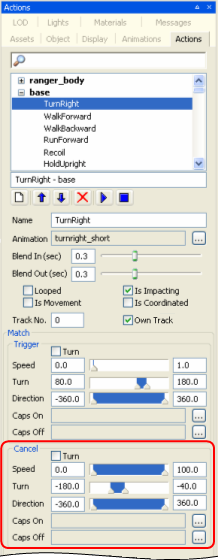
If an action contains cancel conditions, then it will play only once.
Example: The TurnRight action, which is called by the Action Matcher and then cancelled once the cancel conditions are met.
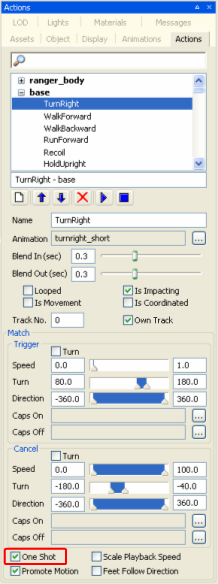
If the One Shot check box is selected, then the action will play only once.
Example: The TurnRight action.
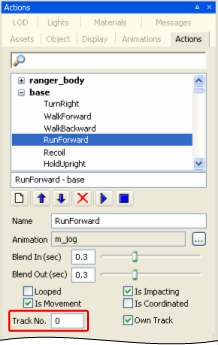
If the current action has the same Track No. value as the newly triggered action, then it will blend out to the new action using the values in the Blend In and Blend Out fields.
Example: The RunFoward and WalkBackward actions.
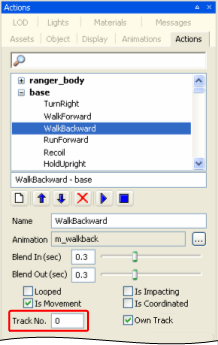
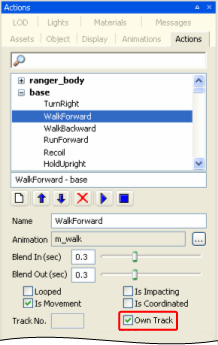
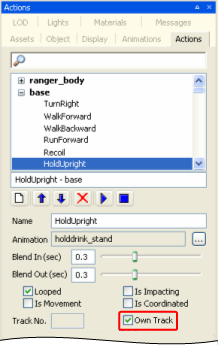
If the current action has a
Track No. value different from the newly triggered action, or has the
Own Track check box selected, then both actions will be played together,
using the animations' per-node blending to weigh each animation.
Example: The WalkFoward and HoldUpright actions.
How to preview blending in ModelEditorFollow the steps below:
1 Select the Actions tab.
2 Select an action in the Actions list box – the action is immediately applied to the model.
For example, select the WalkForward entry.
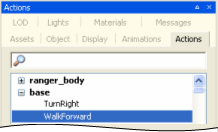
3 Select another action in the Actions list box – the rules defined above will determine how that action is applied to the character.
For example, select the RunForward entry – this causes the character to blend out of the WalkForward and blend into the RunFoward action.
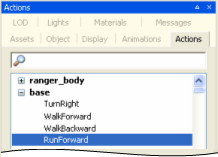
To play an action twice, either select it again in the Actions list box or click the  button.
To remove all actions currently playing on the model, click the  button.
Copyright 1999-2011 BigWorld Pty. Ltd. All rights reserved. Proprietary commercial in confidence.