 Creating a material tint
Tints are an efficient way of creating multiple material variants of a single model. Tints are also the only way of making material properties accessible to game programmers. For example if you wanted to
 change materials in-game,
change texture in-game,
alter a material property (such as a Self Illumination amount)
then you must add a tint to the material property.
Once a tint is added then the specific property you wish to change must be exposed to Python to allow programmers access to the property via code.
In the example below, we needed two types of chimneys. The one to be used in the township has a bitmap and effect file different to the second one, which is used outside the town.
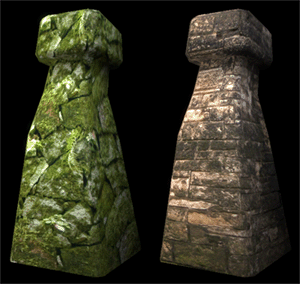
This could be achieved by re-exporting a duplicate of the original model, but a more efficient way would be to create a tint from the existing model. This reduces the number of models that the game engine needs to load into memory.
Before creating a tint, you should create a material file (.mfm),
which will act as the new tint. This procedure is outlined in this manual, in the section
BigWorld shaders and Materials –
Creating a material MFM file. The MFM will be
selected later during the tint creation process.
To create a tint:
1 Open ModelEditor.
2 Load the model to which you want a tint applied.
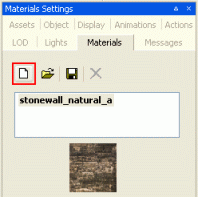
3 In the Materials Settings panel, select the primary
material (in the example below stonewall_natural_a), then click the
Add Tint ( ) button
– the New Tint dialog box will be displayed.
) button
– the New Tint dialog box will be displayed.
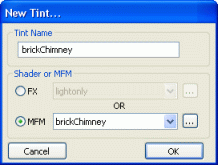
4 In the New Tint dialog box, specify the name for
the new tint, then select the MFM option button and select the
.mfm file you have created previously.
The new material (tint) will be added under the primary material. You can preview the effect by clicking the tint.
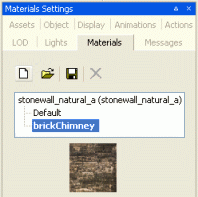
This tint is now open to game programmers to change during the game.
Increase world variation - Using tints in WorldEditorSingle models, primitives, and visual files can have multiple tint variations, allowing world builders to increase the variation of the game world without having to increase the number of models that need to be loaded.
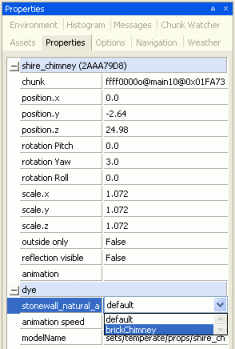
In the example above, a chimney was created with two available materials (the default stonewall_natural_a and the tint brickChimney).
When this object is placed in the world, it will default to the stonewall_natural_a material. To use the object's tint, simply activate the Properties panel, then in the object's dye entry, select the desired tint.
Level Of Detail (LOD) and Tints Tints are automatically maintained throughout a LOD tree.
If both the LOD0 and LOD1 models share material and tint names then the BigWorld engine will automatically chose to display the same tint on the LOD1 model that is displayed on the LOD0 model.
So if your avatar has 2 different tints (red, and blue) and it is currently set to the "red" tint then the second level LOD model will automatically display its red tint providing it has the same material name and tint name.
Copyright 1999-2011 BigWorld Pty. Ltd. All rights reserved. Proprietary commercial in confidence.
