 Letter Case
- Reusing BigWorld art assets
 Organising art resources
- Working with source creation files
- Working with the Asset Browser
- Customising the Asset Browser
Letter CaseReusing BigWorld art assetsOrganising art resourcesWorking with source creation filesWorking with the Asset BrowserCustomising the Asset BrowserWhen creating content for a game using BigWorld, you need to establish an efficient and safe way to handle potentially large amounts of generated data.
Optimising the resources folder structure, combined with effective version control software, should help any artist feel comfortable in negotiating the content creation process.
 Letter Case
It is extremely important to maintain a consistent letter case (upper/lower) throughout development.
Although the BigWorld tools and Windows are case insensitive, the BigWorld server and its scripts run on Linux which is case sensitive. Problems may arise if there is a reference to an art asset within the servers scripts that has inconsistent case.
For this reason we recommend that lower case be used for the file names of all art assets.
In order to prevent case problems occurring we recommend that the source control software you are using be set up to prevent upper case files from being committed.
Reusing BigWorld art assets For information regarding the reuse of BigWorld art assets please refer to licensing_information.html
Organising art resources SetsWe have attempted to optimise the resource paths so that world
building is simpler, requiring less navigation and allowing more time
to be spent on enriching the game environment. The following describes
the ways we have tried to organise common resources in a way more friendly
to world builders. An empty file structure resembling the setup below
can be found within the \bigworld\doc\tools_tutorial_examples
folder under. It may be useful to copy this folder structure
to your
Although the location of art resources is flexible (providing they lie
within the res path), we have found the following structure
to be useful:
Artist assets have been organised in folders representing similar environments called
sets. In the example below the folder
res/sets/temperate pertains to a warm outdoor scene.
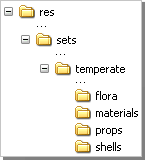
Resource folder structure
Within each sets folder, the following sub-folders are found:

flora - Contains the visual, model, primitive, and texture files of flora objects specific to the set.
materials - Contains material *.mfm files used within the set.
props - Contains the visual, model, primitive, and texture files of props that are specific to the set.
shells - Contains
the shell visual files, as well as the model, primitive, and texture files of shells
specific to the set. (Shells will only be recognised by the engine if
they are located in a folder named shells).
If the game world has a good deal of variety, then the props
folder can become cluttered.
It is up to the user to determine the volume of objects that will
eventually populate a particular set, and to devise a sub-folder
structure to adequately categorise similar objects.
We recommend limiting the sub-folder categorization, in order to reduce
the amount of time world builders spend navigating resource trees.
Below is an example of such a folder structure:
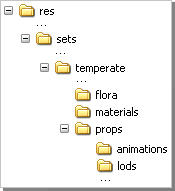
Example folder structure
Because animations and level of detail (LOD) models are not used by the world builders when placing objects,
they can be organised within their own sub-folders animations and lods respectively.
Characters - Avatars and NPC'sAvatars (player-controlled characters) and NPC's (Non-Player Characters) are not specific to a set,
and therefore are more complex than most BigWorld objects.
For this reason they are given their own folder structure.
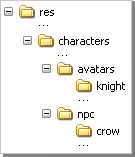
Character folder structure
In this structure, the following sub-folders are found:
res/characters - Common folder for character files.
avatars - Contains one sub-folders for each avatar type. The folder knight in the example above contains the model, visual, primitives, LOD, and texture files for the knight avatar.
animations - Contains animation files shared between characters.
npc - Contains one sub-folder for each NPC type. The folder crow in the example above contains the model, visual, primitives, LOD, and texture files for the crow creature.
Non-specific resourcesAssets not specific to a particular set are stored within sub-folders under res.
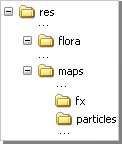
Non-specific resources folder structure
Examples include:
res/flora - Contains the visual, model, primitive, and texture files of flora objects that are not specific to a particular set.
res/maps - Contains
texture files that are not specific to a particular set, or that are
used within multiple sets. For example, a special alpha map used in
both a particle system, and a special effect shimmer object, would be
stored in this folder.
res/maps/fx - Contains
the visual, model, and primitive files related to special effects such
as explosion debris that are not specific to a particular set.
res/maps/particles - Contains maps used specifically within the particle system.
Terrain MapsTerrain maps are placed in their own directory (res/maps/terrain) in order to avoid confusion with other texture maps, and to aid in world building. The World Editor will only display bitmaps that are placed in this directory. If you need to store your terrain maps in a different directory structure you will need to edit the Asset Browser.
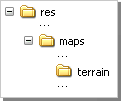
Terrain maps folder structure
ParticlesParticle system XML files are stored under the folder res/particles. No other files should be stored here.
ParticleEditor saves particle systems to this folder.
Texture files used within particle systems can be stored under res/maps/particles.
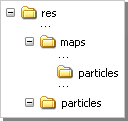
Particle system folder structure
Working with source creation filesSource (or working) files are the actual content created using either a 3D package such as 3ds Max / Maya, or a 2D image program like Photoshop.
We suggest you follow these protocols when working with original source material:
The source
files are created locally, then copied to a network or committed to source control to be shared by other
artists. Any modifications made locally first should always be updated on the
network.
Consider
using a version control program, such as SVN, Perforce or CVS, to update the network
content with the final working files for each asset. This is very
helpful in tracking changes and retrieving past versions of the
resources.
Working with the Asset BrowserThe Asset Browser is a resource browsing facility built into all the BigWorld content creation tools (WorldEditor, ModelEditor and ParticleEditor). It can be accessed from the Assets tab in any of the content creation tools.
When using the Asset Browser it can be useful to move it to a second monitor or dock it on the other side of the screen. To move the Asset Browser simply select and drag the Assets tab to the new location.
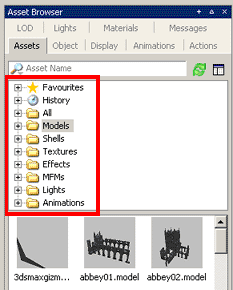
Asset Browser panel's virtual folders
The Asset Browser's parent folders are filters, not directory structures. If you select the Models virtual folder, then the Asset browser will only show models located in those folders outlined in the tools ual_config.xml within your resource paths.
Likewise if you select Textures then the Asset browser will show all the textures located in those folders outlined in the tools ual_config.xml within your resource paths.
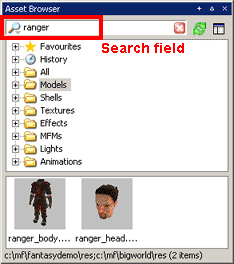
Asset Browser panel – Using the search field
The dynamic search field will further limit the displayed resources to those resources containing the text typed in the search field. In the example above the Asset browser is displaying all models (because the Models virtual folder is selected) with the text "ranger" in their model name.
If you want to browse a folder structure directly, then you can expand any of the virtual folders to display the directory structure inside your resource paths.
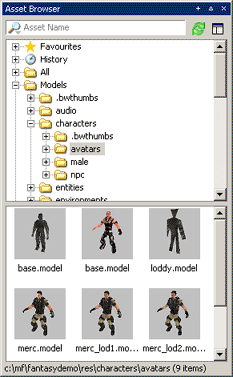
Asset Browser panel – Using the virtual folder's tree structure
The favorites folder can be used to collect frequently used assets. To add an asset to Favorites simply drag the asset from the browser window over the favorites folder. All types of assets can be added to the Favorites folder.
There are three ways to open/add an asset from the Asset Browser.
In WorldEditor, assets can be added to the world by selecting the asset and pressing enter in the viewport.
In all the tools, assets can be dragged directly from the Asset Browser to the tool's viewport.
In ModelEditor and ParticleEditor, double-clicking an asset opens it in the tool's viewport.
Customising the Asset BrowserAlthough most of the virtual folders will point directly to the paths outlined in your resource paths there are some exceptions.
The Particles virtual folder for example will only look inside the res/particles folder.
The Textures virtual folder within WorldEditor will only look in the res/maps/terrain folder.
This behaviour can be modified by editing the ual_config.xml found in mf/bigworld/tools/BigWorldTool/resources/ual/ual_config.xml. XML files can be edited with Notepad (Right click Open - With).
Within ual_config.xml you will find a <Files> "FolderName" tag that instructs the Asset Browser to look in specific places for assets. The example below shows the tag outlining where particles can be found.
<Files> Particles
   <path>           particles                                </path>
   <disableFilter>  Models;Shells;Prefabs;Trees;Entities;XML </disableFilter>
   <folderExclude>  *CVS;*/spaces;*/.bwthumbs                </folderExclude>
   <extension>      xml                                      </extension>
   <thumbnailSize>  1                                        </thumbnailSize>
   <showSubfolders> true                                     </showSubfolders>
   <showFiles>      true                                     </showFiles>
</Files>
As you can see above, the Particles virtual folder is looking in the res/particles folder.
<Files> Particles
   <path>           particles                                </path>
   <path>           temperate/particles                      </path>
   <disableFilter>  Models;Shells;Prefabs;Trees;Entities;XML </disableFilter>
   <folderExclude>  *CVS;*/spaces;*/.bwthumbs                </folderExclude>
   <extension>      xml                                      </extension>
   <thumbnailSize>  1                                        </thumbnailSize>
   <showSubfolders> true                                     </showSubfolders>
   <showFiles>      true                                     </showFiles>
</Files>
It has now been modified to search in both res/particles and res/temperate/particles.
Copyright 1999-2011 BigWorld Pty. Ltd. All rights reserved. Proprietary commercial in confidence.